Friday, January 1, 2010


Wednesday, December 16, 2009
Import your contacts from Gmail to Outlook
- Log on to your Google Gmail account.
- In the left column, click Contacts.
- On the right side of your screen, above the message count, click Export.
- Click Outlook CSV (for import into Outlook clients).
- Click Export Contacts.
- When prompted to download the export file, click Save.
- Choose a location on your computer to temporarily save the file. The default file name is gmail-to-outlook.csv.
Note You can delete this file after your contacts are imported into Outlook.
- Click Save.
- In Outlook, on the File menu, click Import and Export.
- Click Import from another program or file, and then click Next.
- Click Comma Separated Values (DOS), and then click Next.
- In the Import a File box, browse to find the file you downloaded in step 8, and then double-click the file.
- Click one of the following:
- Replace duplicates with items imported
- Allow duplicates to be created
- Do not import duplicate items
- Click Next.
- In the folder list, click the Contacts folder where you want the imported contact information to go, and then click Next.
- To add or remove fields to determine the way the contact information is saved in the new imported file, click Map Custom Fields.
Note The Map Custom Fields button in the Import a File dialog box might not be available when you try to import data from another program or file. In the The following actions will be performed box, select the Import check box, and then the Map Custom Fields button is available.
Tuesday, December 15, 2009
Disable Sending Error Report Feature of Windows XP
2> Click on Preformance and Maintenance.
3> Click on System.
4> Then click on the Advanced tab
5> Click on the error reporting button on the bottom of the windows.
6> Select Disable error reporting.
7> Click OK
8> Click OK
Sunday, September 6, 2009
Rotate Your CRT Monitor Screen Using Keyboard

Rotating Screen Right Side:
Press Ctrl + Alt + Right Arrow

Rotating Screen Down Side Side:
Press Ctrl + Alt + Down Arrow

Rotating Screen Left Side Side:
Press Ctrl + Alt + Left Arrow

Rotating Screen Up Side Side:
Press Ctrl + Alt + Up Arrow

Enjoy!!! IT-INFO
Thursday, June 4, 2009
Free Allway Sync™ Software Downlaod
| What is Allway Sync™? | |
| Allway Sync is free file and folder synchronization software for Windows. Allway Sync uses innovative synchronization algorithms to synchronize your data between desktop PCs, laptops, USB drives and more. Allway Sync combines bulletproof reliability with an extremely easy-to-use interface. | |

Sunday, May 31, 2009
Sync MS Outlook Calendar With Google Calendar
- Make sure you're using a supported operating system and Outlook version.
- Download Google Calendar Sync (version 0.9.3.5) at http://dl.google.com/googlecalendarsync/GoogleCalendarSync_Installer.exe
- Once a dialog box appears, click Save File. The downloaded file should open automatically. If it doesn't, manually open it from your browser's download window.
- Click OK to confirm that you're aware this is an executable file.
- Read through the Google Calendar Sync Terms of Service, and click I Agree.
- Follow through the Installation Options and click Install to finish the set-up process.
Once Google Calendar Sync is installed on your computer, the Google Calendar Sync Settings window will appear:
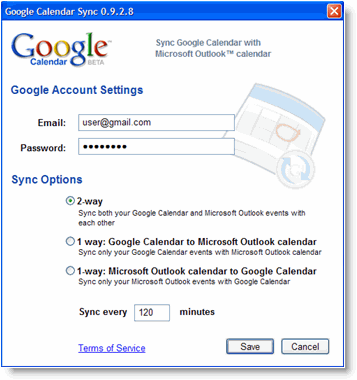
In the Settings window, enter your email address and password and select the Sync Option you prefer. Read about each Sync Option.
You'll also be able to set the time interval for syncing to occur. Please keep in mind that 10 minutes is the minimum time interval allowed.
After the initial set-up, you can access the Google Calendar Sync Settings window again by double-clicking the calendar icon in your Windows System Tray.
Icon Status
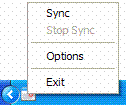
To access the Google Calendar Sync Settings window, just right-click the calendar icon in your Windows System Tray and select Options.
When your events are actively syncing between Google Calendar and Microsoft Outlook Calendar, you'll see arrows in the Google Calendar Sync icon:

When events aren't actively syncing, your calendar icon will look like this:

This info copied from:

Saturday, May 23, 2009
Commands for Opening Programs Using Run
Administrative Tools : control admintools
Automatic Updates : wuaucpl.cpl sq
Calculator : calc
Computer Management : compmgmt.msc
Device Manager : devmgmt.msc
Disk Cleanup Utility : cleanmgr
Display Properties : control desktop
Driver Verifier Utility : verifier
Wordpad : write
Click here for More